QuickBooks Online setup in Texas is not hard, but doing it right from the start saves you headaches later. A clean setup means accurate books, easy sales tax, and reports you can trust. A rushed one means cleanup down the road.
This guide walks you through the full setup, from choosing a plan to adding payroll. We also cover why QuickBooks works well for small businesses, and when it makes sense to get help.
QuickBooks Online, or QBO, is one of the most widely used accounting tools for small businesses. It is cloud-based, so you can reach your books from anywhere, and your data is stored and updated in the cloud. You can also see our bookkeeping services if you would rather have it set up and run for you.
One note before we start. QuickBooks plans, features, and prices change often. This guide focuses on the setup that stays steady. For the current plans and pricing, always check Intuit directly.
QuickBooks Online setup checklist
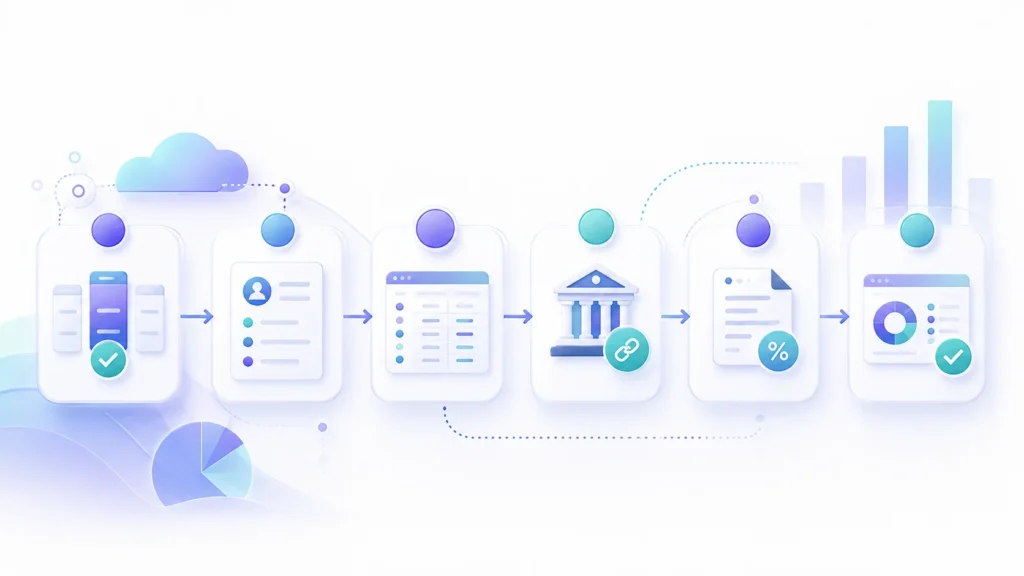
Here is the whole setup in order. The sections below walk through the key steps in more detail.
1. Choose the right plan for your business.
2. Enter your company and tax information.
3. Set your accounting method and fiscal year.
4. Review the default chart of accounts.
5. Connect your bank and credit-card accounts.
6. Create your products, services, and tax categories.
7. Set up Texas sales tax, if you collect it.
8. Add opening balances.
9. Test an invoice and a payment.
10. Reconcile your first statement.
Choosing the right QBO plan
QuickBooks Online currently offers four standard plans: Simple Start, Essentials, Plus, and Advanced (Intuit). Intuit also offers QuickBooks Solopreneur as a separate product for qualifying one-person businesses. The four standard plans build on each other, so higher plans add more features and more users.
Start by answering a few questions. Do you need full double-entry accounting? How many people need access? Do you track bills, time, inventory, or projects?
Simple Start is the entry point for full accounting. It covers invoicing, expense tracking, sales tax, and 1099 tracking, for one standard user. Essentials adds bill management and time tracking, with access for a few users. Plus adds inventory tracking and project profitability, which product sellers and project-based businesses tend to need. Advanced is built for larger or more complex businesses, with more users, batch tools, and deeper reporting.
If you run a one-person business with simple needs, QuickBooks Solopreneur may fit instead. It is a separate, lighter product for solo operators, not one of the four standard plans.
| Plan | Suitable for | Key limitation |
|---|---|---|
| Simple Start | Small businesses with basic accounting needs | One standard user |
| Essentials | Service teams managing bills and time | No inventory tracking |
| Plus | Inventory or project-based businesses | Higher monthly cost |
| Advanced | Larger and more complex businesses | May be more than a small company needs |

Confirm the current features and limits on Intuit before you buy. The lineup changes, and Intuit has adjusted plans and pricing more than once recently.
Many small businesses start with Simple Start or Plus. If you know you will need inventory or project tracking soon, starting on Plus can save you from switching later. You can also change plans as you grow.
Check the current trial terms before subscribing. QuickBooks usually offers a free trial or an introductory discount, but not both at once. Test the plan you think you need before you commit.
Chart of accounts setup
Your chart of accounts is the backbone of your books. It is the list of categories QuickBooks uses to sort every transaction. Get it right, and your reports make sense. Get it wrong, and everything downstream is off.
QuickBooks gives you a default chart of accounts when you set up. It is a fine starting point. There is no need to go overboard customizing it on day one.
Here is a simple sample to picture it. This is a generic starting point, not a prescription for your business:
Income: product sales, service income
Cost of goods sold: materials, subcontractors
Expenses: rent, utilities, software, marketing, insurance, payroll
Assets: business checking, business savings, equipment
Liabilities: credit card, loan, sales tax payable
Equity: owner’s equity, owner’s draws
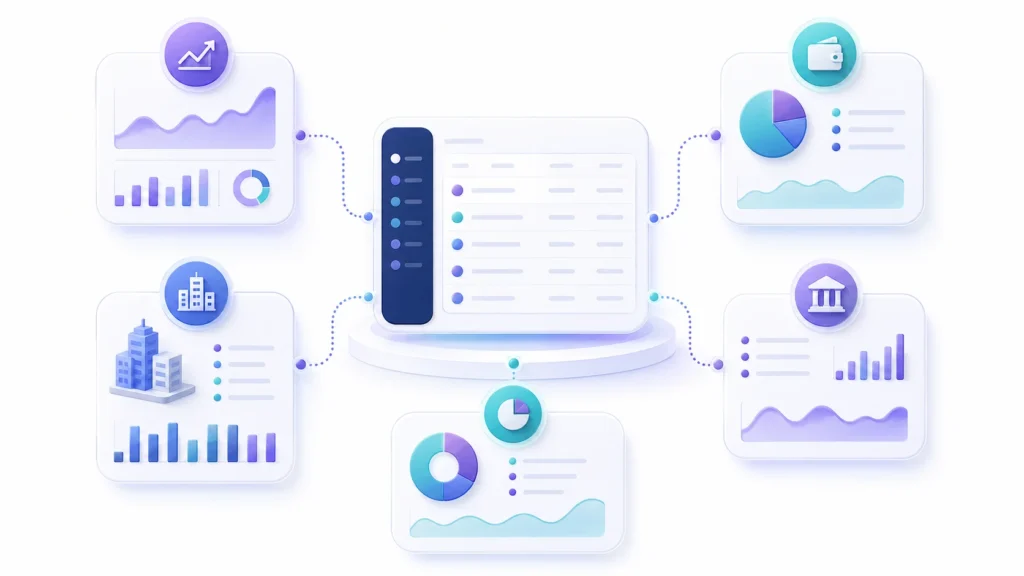
Your real chart of accounts should match how you run the business. A contractor tracks job costs and subcontractors. A restaurant tracks food and labor, and often inventory. A simple service firm can keep it lean, with a few income and expense accounts.
A few tips. Keep it lean and use clear names. Group similar expenses instead of making a separate account for every small thing. Too many accounts make reports harder to read, not easier.
A few things to avoid. Do not run personal spending through business accounts. Do not create a brand new account every time you are unsure where something goes; use an existing category and refine later. In QuickBooks, chart of accounts entries are usually made inactive or merged, not permanently deleted. Do not make an account inactive or merge it without checking its balance, transactions, and effect on your reports.
You can refine it over time. As you learn which reports you want, you can add or merge accounts. It is easier to start lean and grow than to untangle a bloated list later. If you are unsure, a bookkeeper can set this up to fit your business.
Bank feeds and rules
Bank feeds are what make QuickBooks fast. You connect your bank and card accounts, and transactions flow in automatically. No more typing every line by hand.
To set up, connect each account through the banking area. QuickBooks pulls in recent transactions and keeps updating. You then review each one and assign it to the right account.
Rules save even more time. A bank rule tells QuickBooks how to handle transactions that match a pattern. For example, every payment to a certain vendor can be categorized as supplies without you touching it. Start with a few rules for your most common transactions, and watch a pattern a few times before you trust a rule to handle it.
Learn the difference between match and add. Here is an example. You send a customer an invoice, and later they pay it. The payment appears in the bank feed. Because the invoice is already in your books, you match the two rather than adding a new income entry. Adding it would count the sale twice. When a transaction is genuinely new, like a supplier charge, you add it.
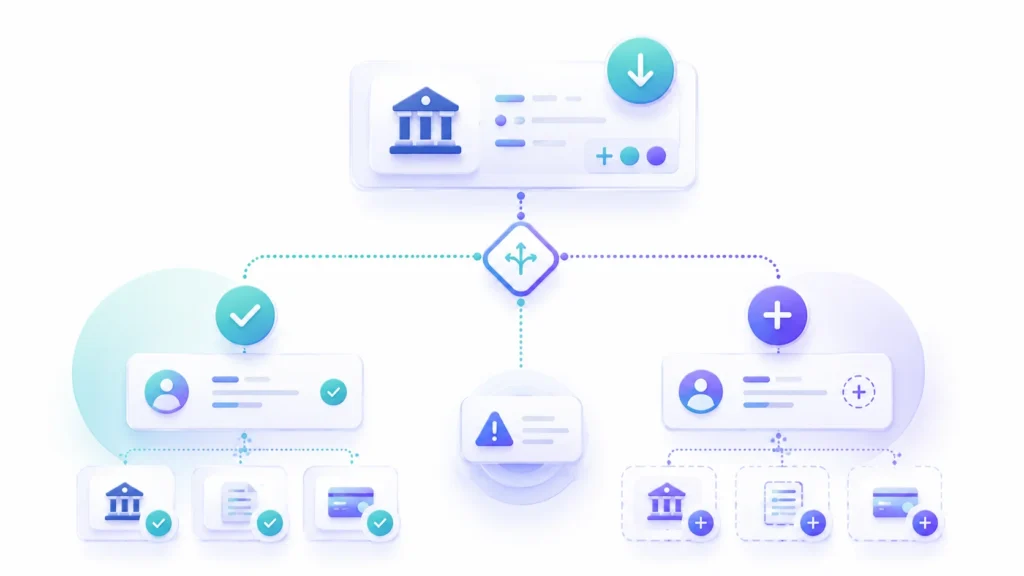
One habit matters most. Review the bank feed regularly, at least weekly. Categorize what is clear, and flag anything odd. This keeps your books current and makes the monthly close fast. For the full routine, see our monthly bookkeeping checklist.
Connecting the feed is not the same as reconciling. The feed brings transactions in. Reconciliation still matches your books to the statement each month, allowing for outstanding items. You need both.
Sales tax setup (Texas)
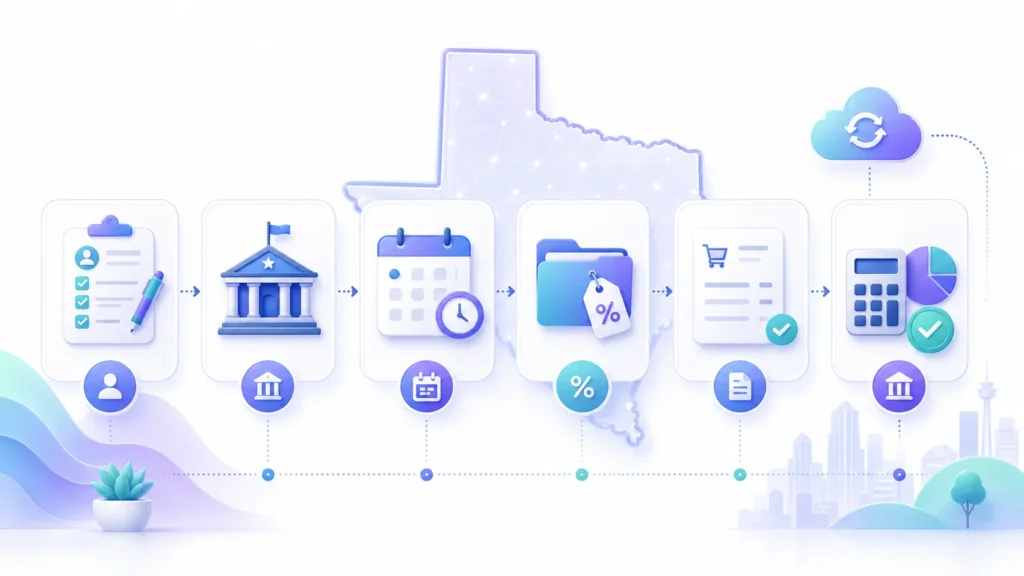
If you sell taxable goods or services in Texas, you collect sales tax and send it to the state. QuickBooks can handle most of the work with its automated sales tax feature.
Register first. You must be registered with the Texas Comptroller for a sales tax permit before you set up a tax agency in QuickBooks. Only add the agency after your registration is finalized.
Here is the Texas setup in order:
1. Register with the Texas Comptroller for a sales tax permit.
2. In QuickBooks, open the Sales Tax area and turn on automatic sales tax.
3. Confirm your business name and address, since QuickBooks uses your location to work out the rate.
4. Add the Texas Comptroller as your tax agency, with your filing frequency and start date.
5. Choose cash or accrual to match how you report.
6. Assign tax categories to your products and services, and mark tax-exempt customers.
7. Test an invoice to confirm the rate before you rely on it.
Once it is on, QuickBooks calculates sales tax on your invoices and receipts. It bases the rate on what you sell, where you sell, and where you ship, and it keeps up with rate changes. It also tracks what you owe and when it is due.
Texas assigns you a filing schedule, monthly, quarterly, or yearly, based on your volume. Monthly filers are generally due by the 20th of the following month (Texas Comptroller). QuickBooks tracks the amount and the due date. Eligible monthly and quarterly filers may also be able to file and pay through QuickBooks. Otherwise, you file directly with the Texas Comptroller. File even in a period with no sales to report.
Double-check the rate for your address. Texas combines a state rate with local rates, so the total depends on your exact location. Confirm it looks right on a test invoice before you rely on it.
Payroll add-on
If you have employees, you can add payroll. QuickBooks Payroll is a separate paid subscription, not part of the base accounting plan (Intuit).
Payroll adds a lot. It calculates pay, withholdings, and employer taxes. It can handle direct deposit and help with payroll tax deposits and filings. Because it connects to your books, the wages and taxes flow straight into your accounting.
Texas does not collect personal state income tax, but employers still have other reporting duties. You handle federal payroll taxes as usual. You also register with the Texas Workforce Commission, generally within 10 days of becoming liable, report new hires within 20 calendar days, and pay state unemployment tax on wages. Payroll software helps keep these straight.
Set payroll up carefully. Enter your employer tax details, each employee’s information, and your pay schedule. Mistakes here can lead to penalties, so it is worth double-checking or getting help the first time.
If payroll feels like a lot, you can outsource it. Many small businesses use a payroll service, or a bookkeeper who runs payroll, so they do not have to manage it themselves.
Benefits of QuickBooks
Why QuickBooks? It is popular for good reasons. Here is what small businesses tend to like about it.
It is cloud-based. You can reach your books from any device with internet, and your data is stored and kept updated across supported devices. Point-in-time backup and restore tools are available with QuickBooks Online Advanced. Updates happen for you, so you are always on the current version.
It automates routine data entry. Bank feeds, rules, and automated sales tax cut down on manual work. That tends to mean fewer typing errors and less time spent on the books.
It gives you real reports. A profit and loss statement, a balance sheet, and a cash flow view are built in. You can see how the business is doing without building spreadsheets.
It connects to other tools. Payroll, payment processing, and many apps plug in. Your accountant or bookkeeper can also log in and work alongside you in the same file.
It supports growth. You can start on a lower plan and move up as you need more. The core stays familiar, so you are not switching systems every year.
No tool is perfect. QuickBooks has a learning curve, and the cost can climb as you add features, users, and payroll. But for many small businesses, the time it saves is worth the price.
When to get help
You can set up QuickBooks yourself, and many owners do. But there are times when help pays off.
Getting the setup right is one. A clean chart of accounts and a correct sales tax setup are worth doing once, correctly. A bookkeeper can build it to fit your business from the start, so you are not fixing it later.
Professional help may also be useful when your existing QuickBooks file is disorganized. A professional may be able to correct the records faster and restore accurate reports.
Ongoing bookkeeping is another reason. Some owners want their time back. A bookkeeper keeps the books current each month, so you can focus on running the business.
Complex situations also tip the scale. Inventory, multiple locations, payroll, or a mix of these add real complexity. Help can keep it accurate and support compliance.
Cost is part of it. Setup help is usually a one-time fee, while ongoing bookkeeping is a monthly cost. Weigh that against the value of your time and the risk of errors in your books and your tax filings.
Get your QuickBooks set up right
Tax by Lonestar is based in Collin County and helps small businesses across North Texas set up and run QuickBooks Online. Whether you need a clean setup or ongoing bookkeeping, we can help.
In a free consultation, we look at where your books stand and map out the right QuickBooks setup for your business. Contact us to set one up.
This guide is general information, not tax, payroll, or accounting advice. QuickBooks plans, features, and rules change, and the right setup depends on your business. For advice on your situation, talk to a qualified bookkeeper, accountant, or CPA.